
Draft Orders
Draft orders are an optional feature that can be enabled on your account from Settings > Optional Features on the admin site.
Draft orders are saved baskets that can be sent to a customer for approval and continued later.
Creating a Draft
Sales reps and admin users on the ordering site can create draft orders. To begin, select the customer you are ordering for and add the items to your basket in the normal way. From the basket page, select Save As Draft at the bottom.
This will create a draft order and assign it to the selected customer.
Sending a Draft
Drafts can be emailed to the customer for approval using the Send To Customer button.
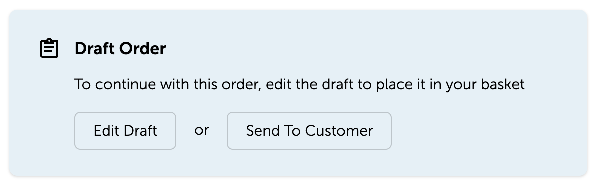
The email contains details of the order, including the items with images. The customer can reply to the email to approve the draft or request amendments. Customers can not edit the draft themselves, and there is no formal approval process.
Editing and Completing a Draft
Previously saved drafts can be accessed from the menu in the top-left of the ordering site. Drafts are only visible to the user who created them and admin users, who have the option to view the drafts for all users.
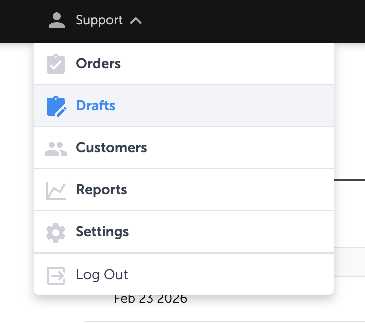
Editing a draft will put it back in your basket and select the customer assigned to the draft.
Drafts can be edited, saved again, and re-sent to the customer.
To complete a draft, edit it, and then Checkout in the normal way. This will convert the draft to a regular order.
Duplicating a Draft
To duplicate a draft, go to the draft when it is not being edited, and select Copy to Basket in the top-right. This will create a copy of the draft in a new basket. You can then switch to a different customer if required and either save the basket as a new draft or Checkout to create a regular order.